

In June 2024 there was a new approval page to be done for debt investors for the Bond 2027.
How to do a separate approval page (e.g. for debt investors)



In CMS go HKFoods site, from there Investors -> Financials -> Information for debt investors -> Bond 2027 / Sijoittajat -> Taloustietoa -> Tietoa velkasijoittajille -> Joukkovelkakirjalaina 2027
To create a new Bond page:
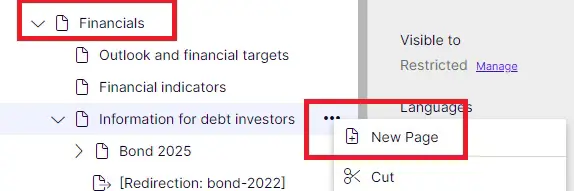
- Create a new page from the three dots on the right side on Information for debt investors page:
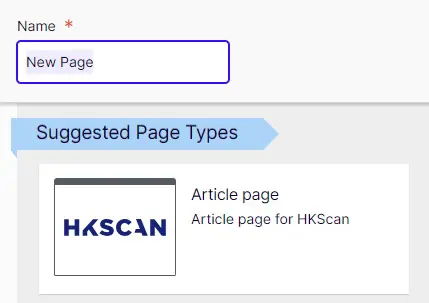
2. Then select Article page as page type and name the page as Bond 20XX.
Then give the page a title, and add introduction and body text:
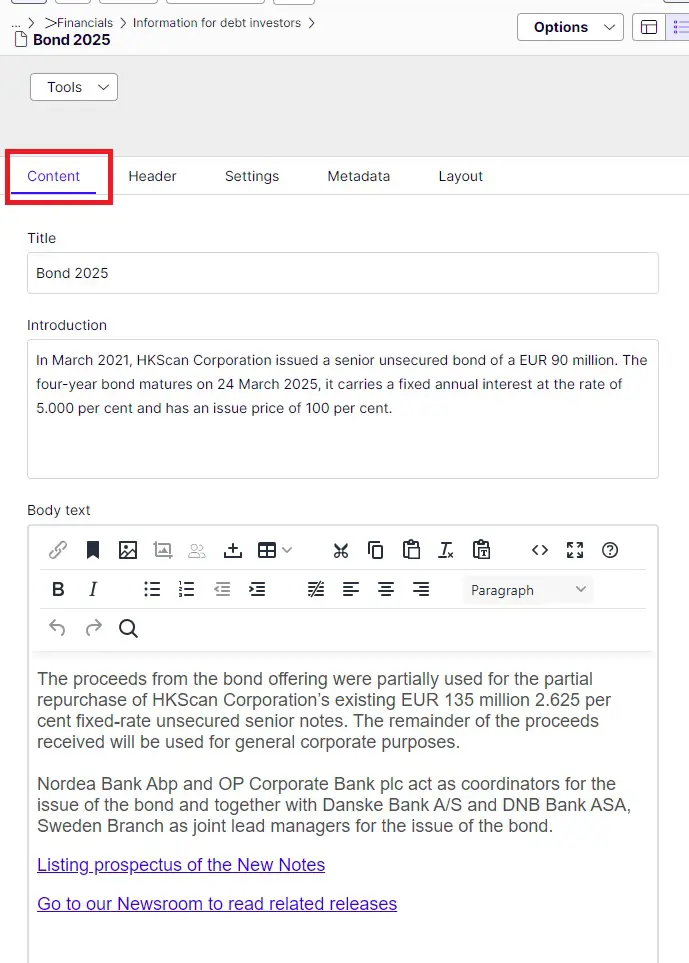
3. Now upload the needed pdf files to Optimizely so they can be added to Body text field as hyperlinks.
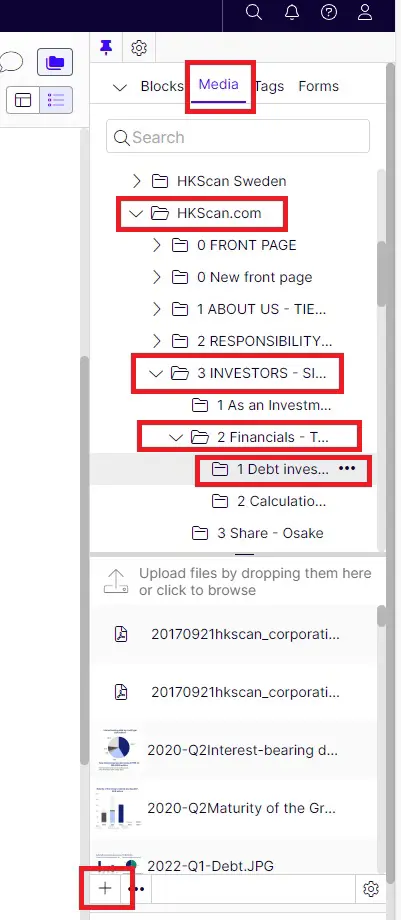
4. On the right side asset pane in Media tab go to folder HKscan.com -> 3 Investors -> 2 Financials -> 1 Debt investors. The list of the uploaded files can be seen at the bottom. Press the plus icon at the bottom to add the needed files:
Read instructions on How to upload a media file to Optimizely
and how to create a hyperlink to text.
Next step is to create a disclaimer page
A page that needs to be approved first before the user can move forward
1. Under the just created Bond 20XX page create a new article page: Name the page Important information 20XX etc.
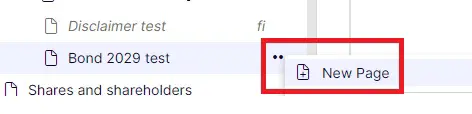
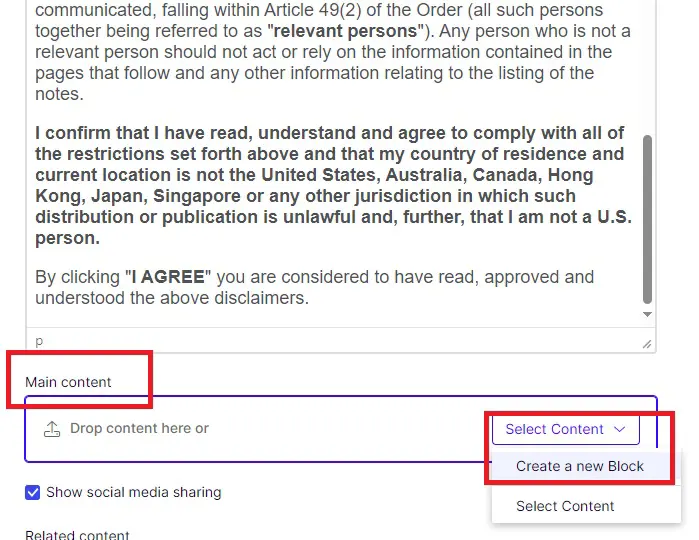
2. Give the page a title and add body text (the disclaimer text). To the Main content area press Select content and Create a new block:
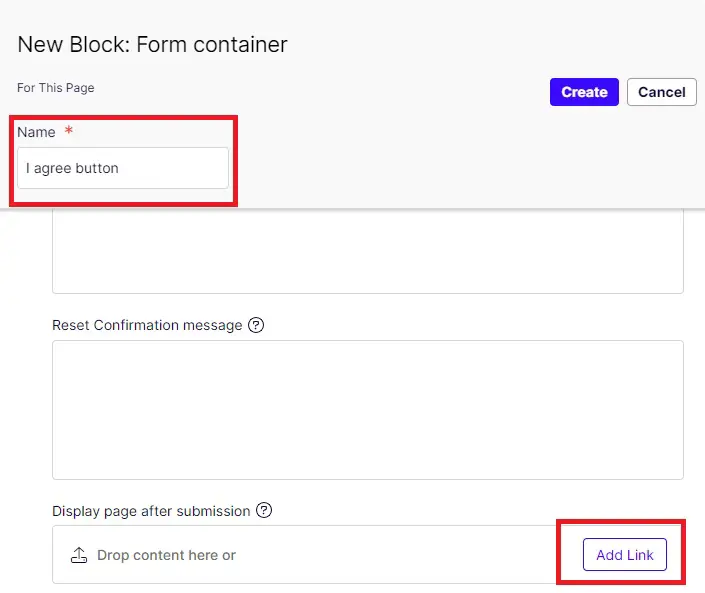
Select block type Form container and name it as I agree button.
3. On the block you can leave the other fields empty. To Display page after submission press Add link:
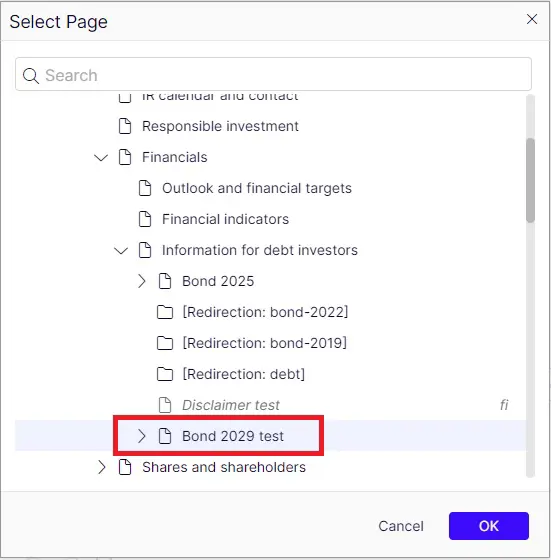
Now press Select page and find the just created Bond 20XX page to add it:
4. Then scroll the Form container block to the bottom (remember to press the blue Create button on top at some point):
Check that the form settings are correct (remember to allow anonymous submissions):
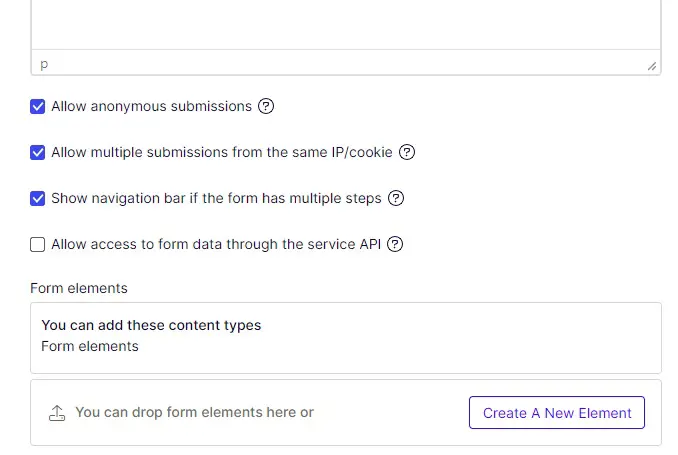
5. Next phrase is to create the button element to the block and dropping it to the Form elements section above. Go to the right asset pane to Blocks tab. Then scroll down the pane so that you can see title Form elements. Open it from the left drop-down arrow:
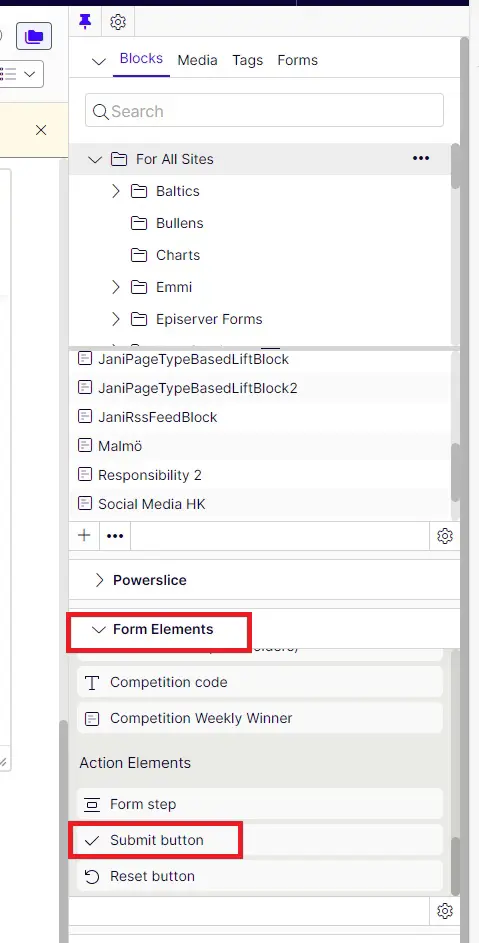
6. Now scroll down the Form elements listing so that you can see Submit button. Drag and drop it the left to Form elements section as below. Then change the button text by pressing the three dots on the right and selecting Edit:
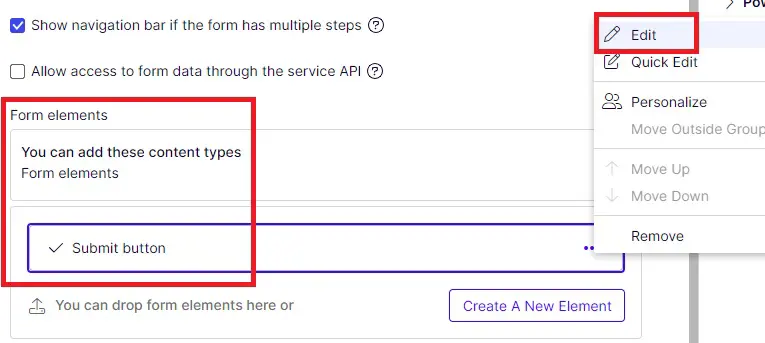
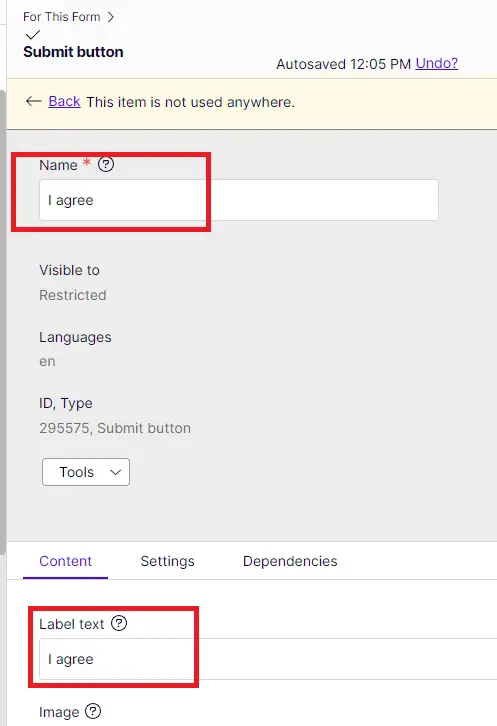
Now change the name and label text of the button to "I agree": Remember to publish and then remember to publish also the Form container block.
If there are no othe language versions coming up, you should be all set.
Remember to update the text and a hyperlink or a button on the Information for debt investors page if needed.
Information for debt investors - HKScan (hkfoods.com)