
Press releases arrive to Optimizely from Cision but sometimes the changes made in Cision are not visible in Optimizely. That means that you need to edit the existing version in CMS.
How to edit a press release / news page / stock release



To edit a press release page you need to navigate to the right page first. Either you can press the blue Edit button on the right upper corner if you're on the page
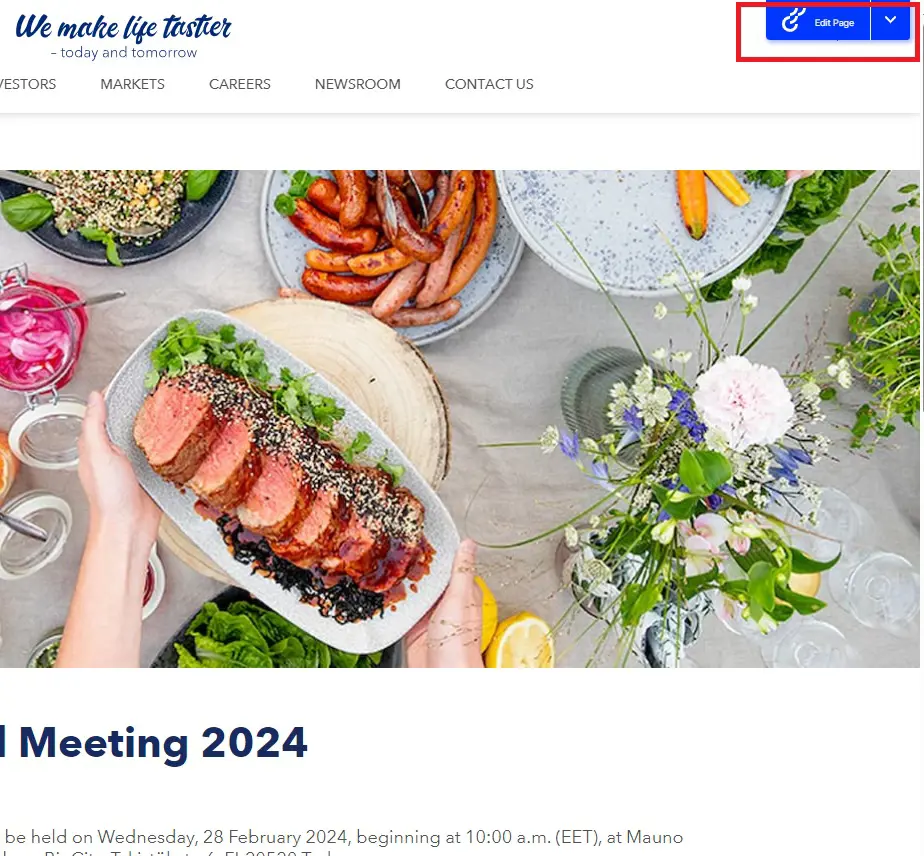
or in the CMS navigate: HKFoods -> Newsroom -> Press releases -> year folder -> month folder -> the right press release
On the page the most important tab where you will do the editing is the Content tab
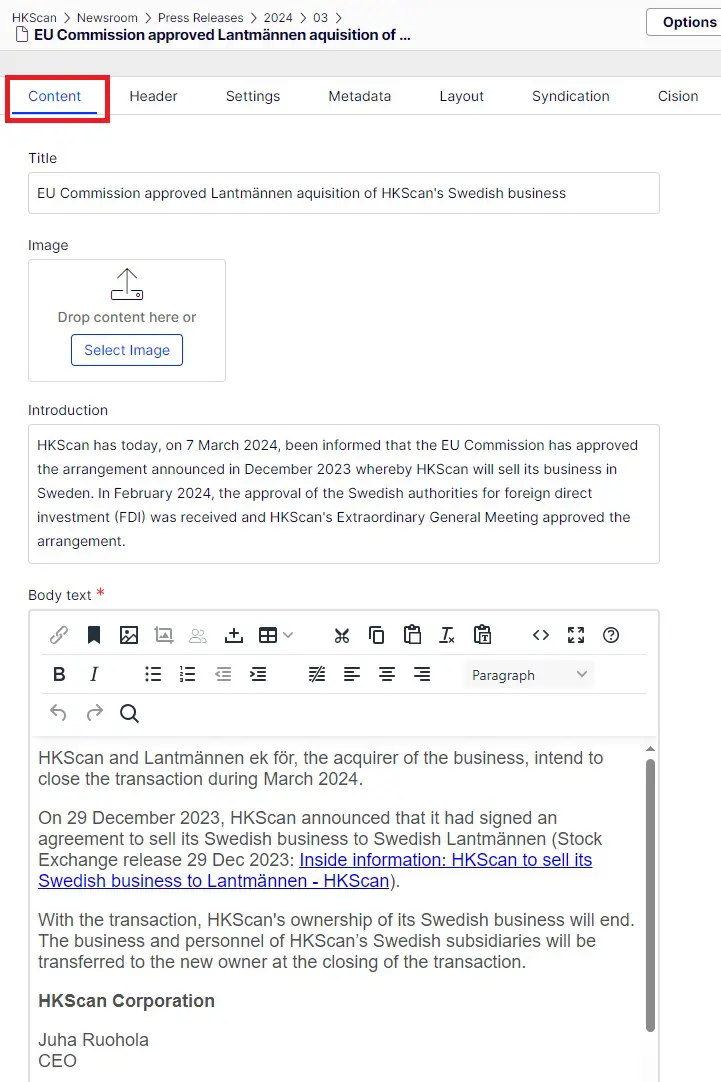
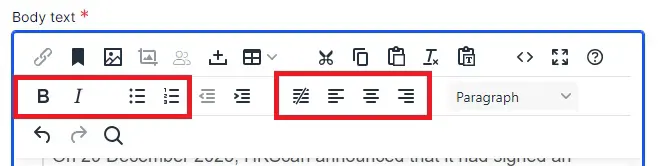
Title and introduction are easy to edit because the stylings are already hard-coded. But on the Body text field there are plenty of things to do with the text much like with MS Word. You can use the text editor when adding boldings, Italic style or bullet points. You can also align the text to the left, right or to the centre. By pressing enter you can change the linings of the text.
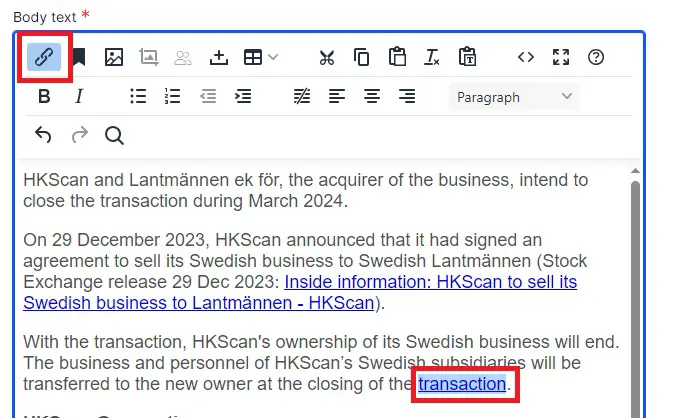
How to add a hyperlink to the text:
- First paint the word or phrase you want to add the hyperlink to
- Then press the link icon on the left corner
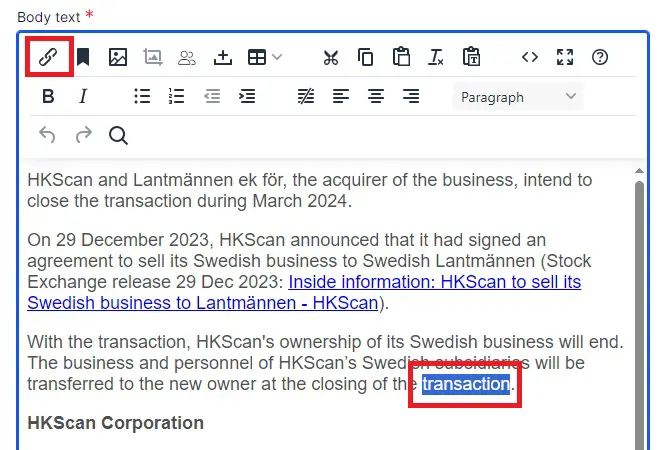
When you press the link icon, a pop up window will display. There you need to give the link a title so that screen readers will be able to recognize what the link is about.
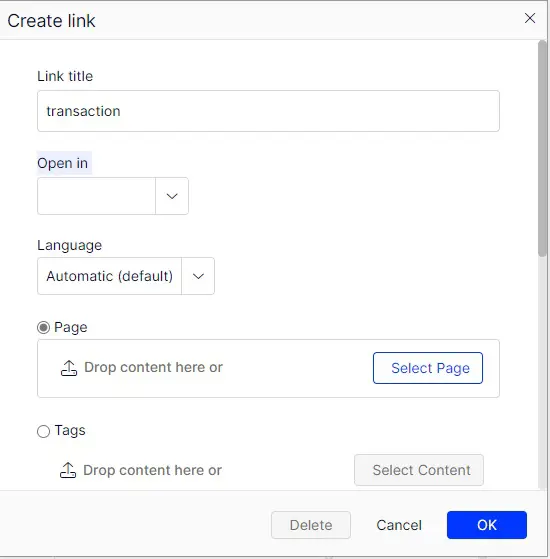
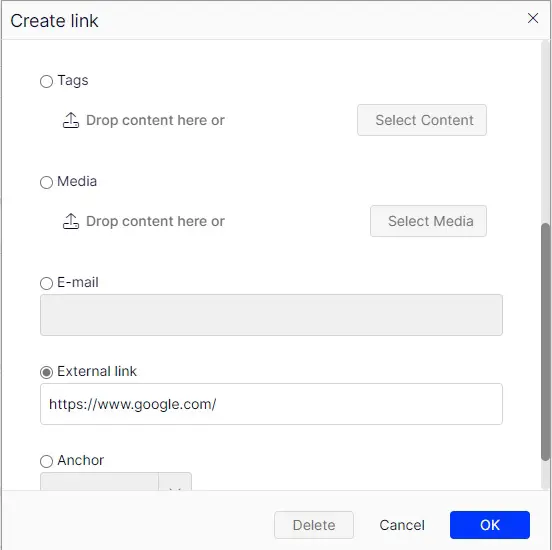
When you scroll the pop up window down, there are several options you can link. One of the most used one is External link. There you just copy-paste the link and press Ok. If you do an external link, remember to change the Open in field in the upper image as "Open in a new tab or window".
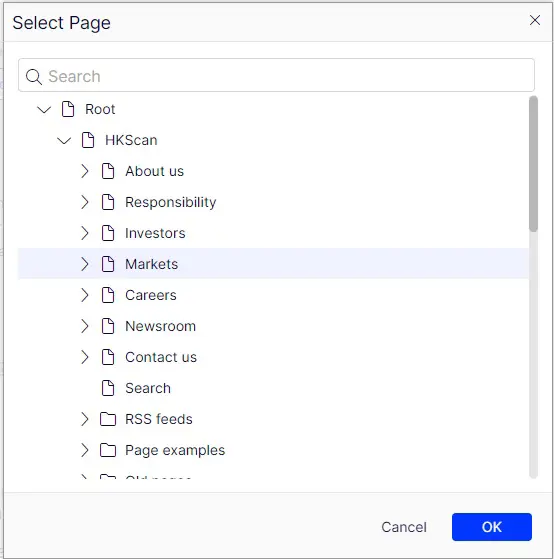
The other option is to link a page within the site. Then press Select page from the upper image at Page. A pop up window opens up. Now from the site structure you can navigate to the page you want to link. Finally press Ok.
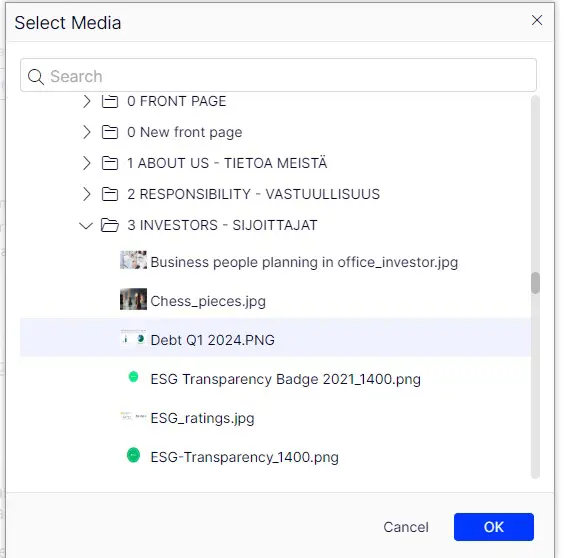
Third option is to link a media file, such as a pdf file. Then you select the Media box in the Create link pop up. Press the button "Select media" and a pop up window opens up with the same structure as on the right asset pane Media tab. There you can navigate to the right folder and right media file you want to select. Finally press Ok.
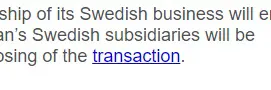
Now the linked phrase will be seen in blue in the CMS:
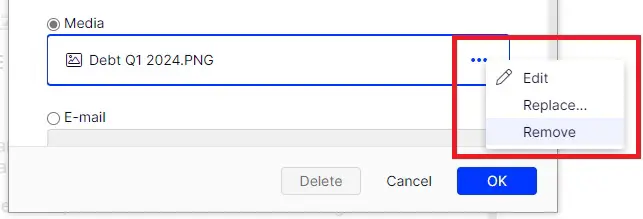
You can also change or remove the page/media file in the pop up window from the right three dots:
You can edit the existing hyperlinks from the Body text field. Click on the hyperlink in the text and then the link icon from the upper left. This will open up the Create link pop up window.