

Optimizely automatically saves all the changes you've done in the CMS. Sometimes you might want to undo them.
How to undo unwanted changes



There are two ways to do that.
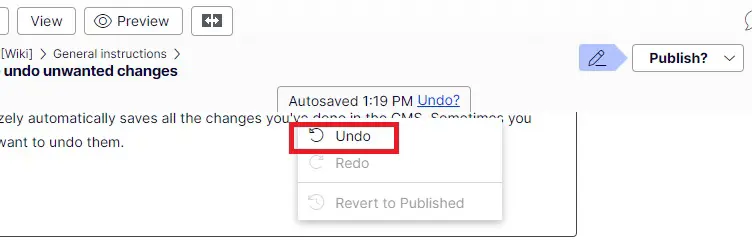
First: Optimizely does an automatic saving for everything you edit on the pages or blocks. On top of each page there comes a small Undo link after each change (even if you do one spacing mark in between the text). Press that to undo smaller immediate changes:
The other option is go to version control where you will be able to see who has published some other versions of the page and when.
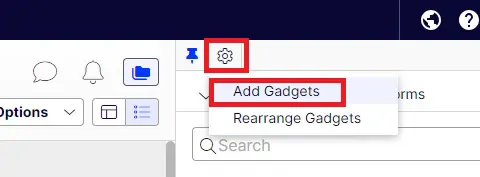
On the right asset pane, go to Settings at the top, select Add Gadgets:
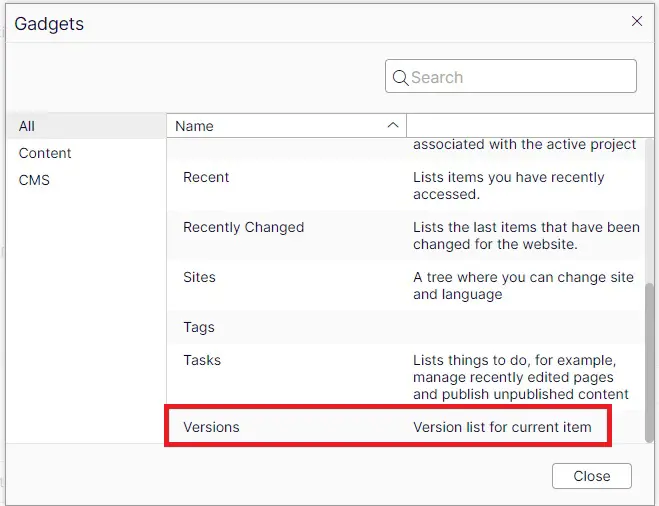
A pop up window will open, select from the top Versions:
Now at the bottom of the right asset pane you should be able to see (remember scroll down enough) the version listing of the page you're working on.
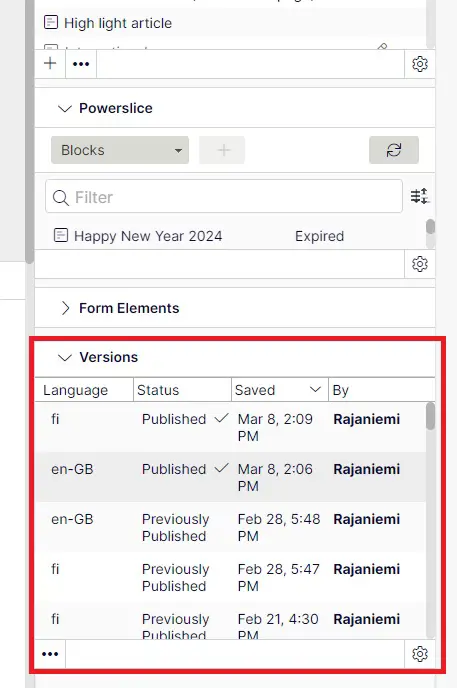
By clicking each version you are able to see and recognize the things that were changed between the versions. The older versions will be shown in gray:
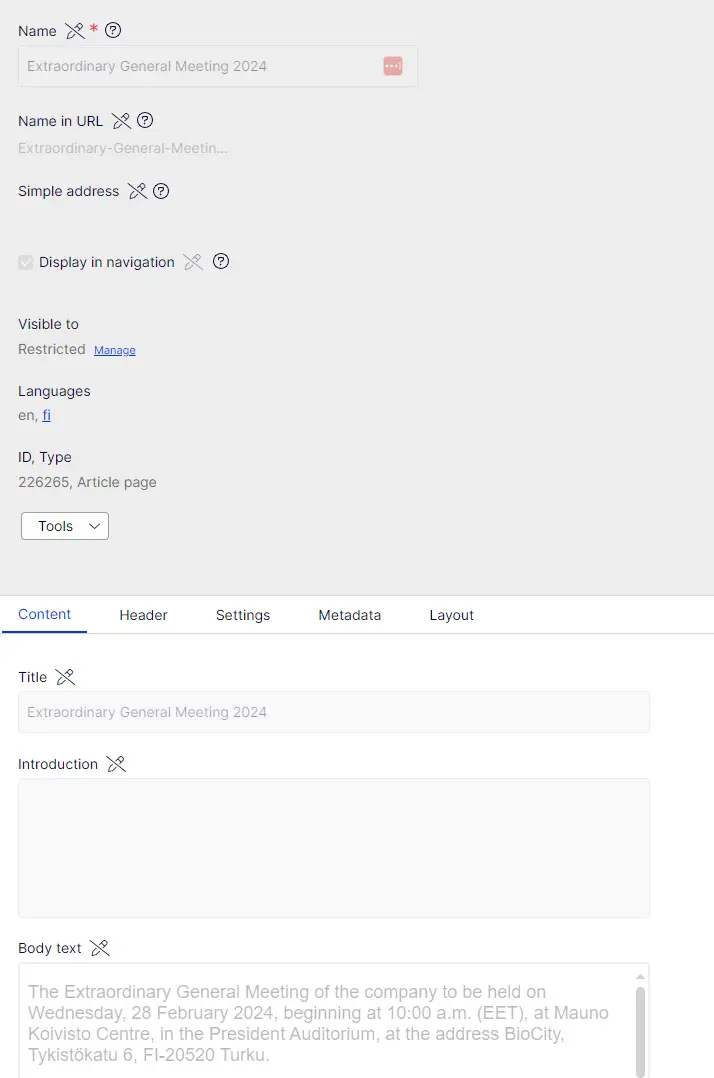
If you want to publish and older version instead of the current one, that is possible. Just click on the wanted version on the right pane listing and publish it normally from the top:
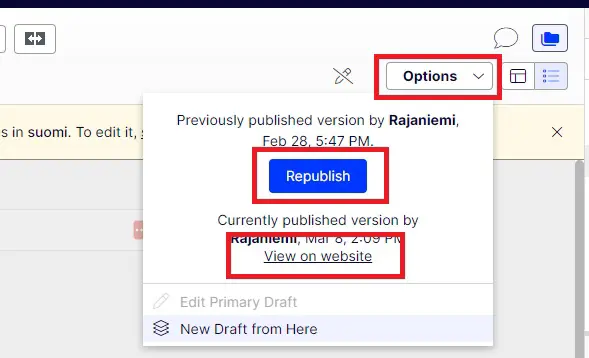
You can also view the current version of the page to make sure you're switching to the right version.